April May and June Calendar: Printable Layout Guide
Print a free April May and June calendar with the right layout, week start, paper size and settings, plus fixes for clipped printouts.
A quarter is easiest to use when its week boundaries and print layout agree. April, May and June make up a 13-week span, but that does not mean the quarter contains 13 complete Monday-to-Sunday weeks. Check the weekly count before relying on the calendar, then inspect the print margins and bottom row: a clipped date can make a tidy-looking page harder to use.
April, May and June Dates at a Glance
April, May and June together span 91 days, exactly 13 seven-day periods, using the month lengths recorded in Britannica's calendar reference. In the Gregorian calendar, those month lengths stay the same each year, but their starting weekdays change.
April, May and June 2027 at a glance
| Month | Days | First day (2027) | ISO weeks (2027) |
|---|---|---|---|
| April | 30 | Thursday | W13 (partial) to W17 (partial) |
| May | 31 | Saturday | W17 (partial) to W22 (partial) |
| June | 30 | Tuesday | W22 (partial) to W26 (partial) |
| Quarter total | 91 | Thursday (April 1) | W13 to W26; 12 complete weeks, W14 to W25 |
The weekday and week-span entries are calendar calculations for the specified year, not permanent properties of these months. A partial week means that some days belonging to that Monday-to-Sunday week fall outside the month or quarter being displayed.
Read the rows separately from the dates
Date cells and calendar days aren't the same thing. A monthly grid includes spaces before its opening date and after its closing date. Those spaces may be blank or display lighter dates from neighboring months.
Changing the week start shifts those spaces. It can also change the number of rows a month needs, so don't assume equally sized month panels always contain equally large writing boxes.
Date-checking rule: Confirm the year, month length and opening weekday before adding appointments. A familiar-looking grid isn't proof that the dates are correct.
Our calendars are provided for general planning and may contain errors. Check an authoritative calendar reference before relying on a date, especially when a booking, deadline or school commitment would be difficult to change.
Yearly or Monthly Layout for the Quarter
A one-page yearly calendar puts April, May and June beside the other months, while monthly pages give each date more room for notes. Choose based on how you will use the printed calendar.
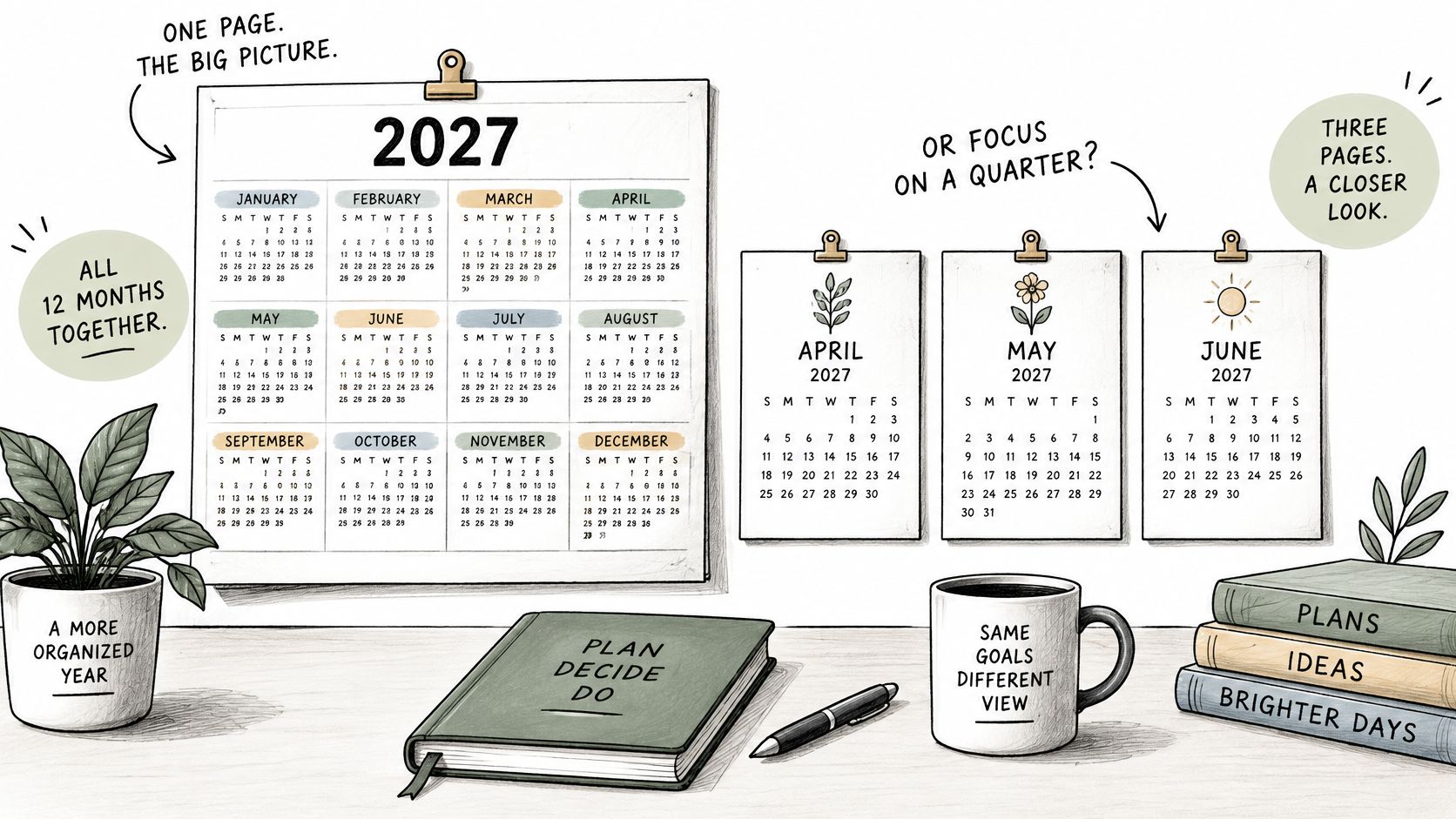
Layout options for April to June
| Layout | Pages for April to June | Writing space | Best use |
|---|---|---|---|
| Yearly one-page calendar | One sheet shared with the other months | Small date cells | Checking dates across the year |
| Monthly pages | Three separate pages (April, May, June) | Larger cells for notes | Appointments, school dates and household tasks |
| Single selected month | One page | Larger cells | Printing only the month needed |
For entries with a time, location and person's name, monthly pages offer more space. A household recording a dental appointment, an afternoon pickup and an evening activity may find those details cramped in the small cells of a yearly sheet.
A yearly reference sheet on the wall and monthly working pages at a desk can serve different purposes. Keep detailed commitments on the monthly pages rather than copying every note onto both versions.
With Dayleaf's monthly layout, you can download all 12 monthly pages or select one month. For example, you can start with the April 2027 calendar and choose other months as needed.
Test the writing space before printing the quarter. Add a sample entry in the calendar preview or on a test print. If the words feel squeezed, use monthly pages rather than trying to fit smaller handwriting into a yearly grid.
Both layouts show the same dates. Choose the format that gives your plans enough room.
US Federal Holidays and Observed Dates for 2027
Memorial Day and Juneteenth National Independence Day are the federal holidays in this quarter. The U.S. Office of Personnel Management's holiday schedule identifies Memorial Day on Monday, May 31, 2027, and the federal observance of Juneteenth on Friday, June 18, because June 19 falls on Saturday.
US federal holidays in the quarter, 2027
| Holiday | Date (2027) | Observed date (federal) |
|---|---|---|
| Memorial Day | Monday, May 31 | Monday, May 31 |
| Juneteenth National Independence Day | Saturday, June 19 | Friday, June 18 |
Distinguish the holiday from the closure
The holiday date identifies the occasion itself. The observed date identifies the substituted federal day off when the holiday falls on a weekend.
For most federal employees working a standard Monday-to-Friday schedule, a Saturday holiday is observed on the preceding Friday, and a Sunday holiday on the following Monday. Nonstandard work schedules can require different treatment, so employees should confirm their own arrangements.
Federal holidays are established under federal law. They aren't a universal promise that every workplace, school, childcare provider or local office will close.
For example, a household might need to arrange childcare for an employer's observed holiday even when another family member works that day. Record the actual closure or coverage requirement rather than assuming everyone shares the same schedule.
A holiday label tells you what to verify. It doesn't replace your employer's leave calendar or your school's closure notice.
Keep markings separate from personal plans
Treat holiday markings as an optional information layer, not part of the date calculation. Adding or removing labels shouldn't move dates, alter weekdays or change the shape of a month.
A blank version is useful when federal observances aren't relevant to your plans, or when you want room for local and religious observances. It also avoids giving a generic list more authority than it deserves.
Before arranging travel or leave, check the applicable employer, school, state and locality. Their observances and time-off policies can differ, even when the federal date is clearly marked.
Choosing Week Start, Paper Size and Holiday Markings
Set up the calendar in this order: layout, week start, paper size, holiday markings, then download or print. Working through the choices consistently helps you avoid configuring one version and accidentally printing another.
You don't need to create an account or sign up. Choose the settings, inspect the preview and obtain the document directly.
Choose conventions your household recognizes
Start with the layout you'll write on. Then choose Sunday first if that matches the calendars your household already reads, or Monday first if you organize work and school commitments around the working week.
Sunday-first displays are familiar in U.S. personal planning. Monday-first displays are convenient when coordinating with international colleagues or schedules expressed through ISO weeks.
Don't change conventions casually between a wall sheet and a desk sheet. Someone reading quickly may otherwise place an appointment in the wrong weekday column.
Match the document to the paper
Choose US Letter for a printer loaded with Letter paper and A4 for a printer loaded with A4. These layouts should be printed with the document and printer set to the same paper format.
Turn holiday markings on when you need federal dates and observed dates as reference points. Choose blank when you'd rather reserve the cells for your own commitments.
The preview is your opportunity to catch a poor choice before using paper. Inspect the weekday headers, cell space and holiday text, not just the overall appearance.
Use this short setup record before downloading:
- Layout: Yearly reference sheet or monthly working pages.
- Week start: Sunday or Monday, matching the people who'll use it.
- Paper size: US Letter or A4, matching the loaded paper.
- Holiday markings: Federal labels on, or blank for personal entries.
Leave the selected version open until you've checked the downloaded PDF. That makes it easier to spot an accidental mismatch between the preview and the file you intend to print.
How to Print Your April, May and June Calendar
Inspect before printing the full set. A test sheet lets you check readability, margins and date placement without committing to the remaining pages.
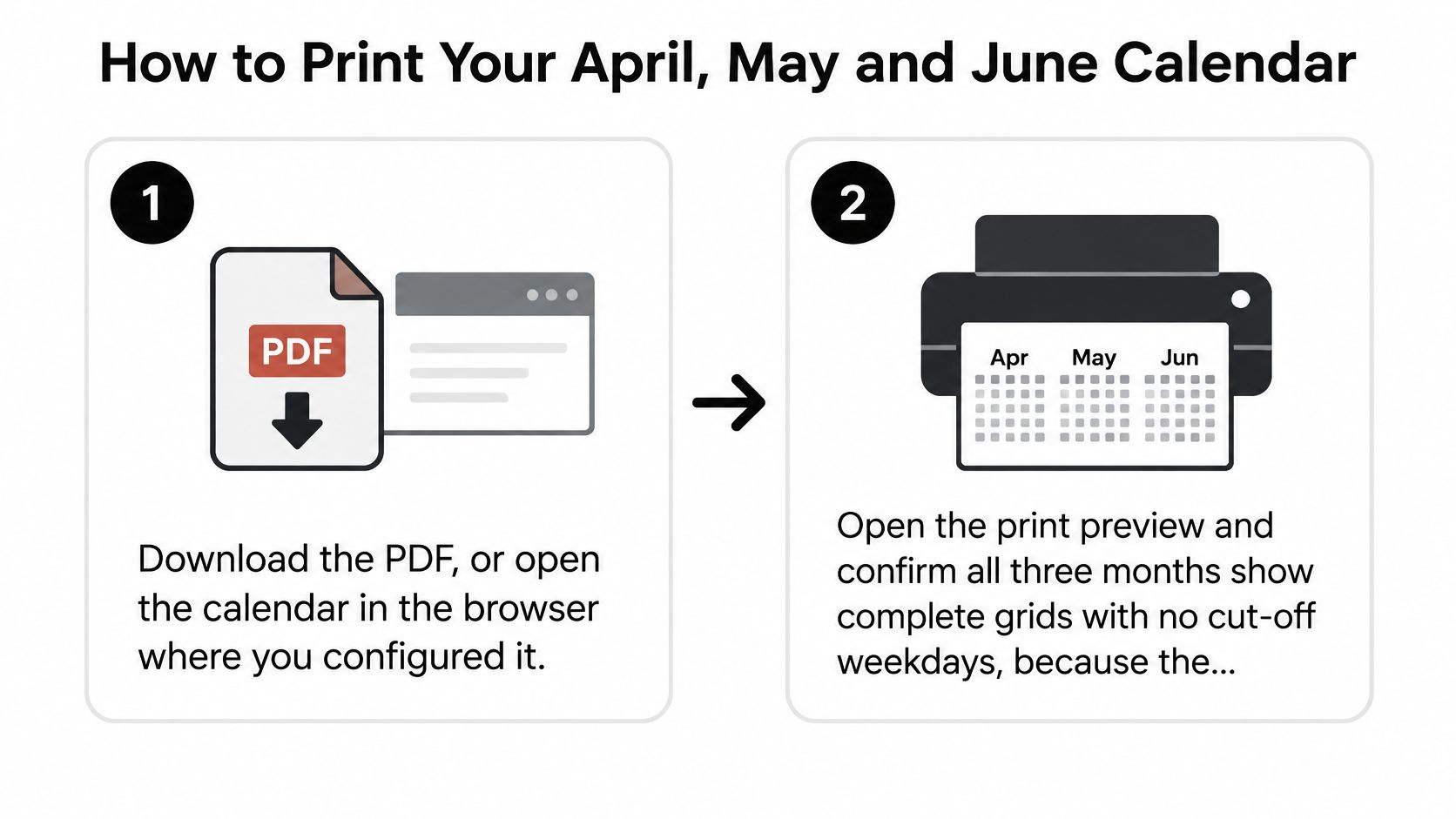
Prepare the file and printer
Download the PDF, or keep the configured calendar open in your browser. Open the downloaded file before printing so you can confirm it's the version you intended to save. Use a descriptive filename if you're keeping both blank and holiday-marked copies.
Open print preview and inspect every month you intend to print. Look for complete weekday headers, intact grid borders and the full bottom row. A page thumbnail can conceal clipping, so enlarge the preview enough to read the edges.
Match the printer's paper size to the calendar's paper size. Select US Letter or A4 in the print dialog, matching the choice made on the calendar page. A mismatch can trigger automatic resizing even when the document initially looks correct.
Choose horizontal orientation to match the PDF design. Check the preview again after changing orientation because a browser or printer driver may update scaling at the same time.
Test the physical result
Use fit-to-page if an edge is cut off. Confirm that the revised preview contains the whole calendar inside the printable area. Don't accept a complete grid if the resulting text is too small for the person who'll use it.
Print a test page on plain paper and compare it with the preview. If June is your test page, examine its bottom row and any holiday labels especially carefully. For separate monthly files, inspect the other months onscreen before sending them to the printer.
Print the remaining selected pages once the test matches. Keep the same paper, orientation and scaling settings. Changing printers or trays between the test and the final print can require another check.
A correct print has every date cell visible, balanced margins and readable labels inside the intended squares. The borders shouldn't disappear into the edge of the paper, and handwritten notes should fit without covering the date numbers.
Before you pin it up: Read the weekday headings from left to right, then inspect the bottom corners. Those checks catch problems that an attractive overall layout can hide.
Keep the PDF as your clean master. If handwritten plans become crowded or change substantially, you can print a fresh working copy rather than trying to decipher layers of crossed-out entries.
Fixing Clipped Edges and Mismatched Paper Sizes
Start with what the printed sheet shows, not with random changes to the printer settings. Identify the symptom, change the relevant setting and test again.
Print symptoms, causes and fixes
| Symptom | Likely cause | Fix |
|---|---|---|
| Edges of the grid cut off | Actual-size scaling or margins exceed the printable area | Set printer to fit-to-page and check the print preview |
| Small calendar with a wide blank border | Printer paper size differs from the calendar size | Set the printer paper to US Letter or A4, matching the calendar |
| Calendar printed sideways or upright | Wrong orientation in the print dialog | Choose landscape before printing |
| Holiday labels missing | Blank version was downloaded | Download again with holiday markings turned on |
| Calendar split across two sheets | Page size set incorrectly | Reset the paper size and reprint one test page |
Separate print problems from file problems
Clipped edges, excessive borders and incorrect orientation usually require a settings change and a reprint, not a fresh download. Check paper size before compensating with custom scaling, since shrinking the page can conceal the original mismatch.
If a browser ignores fit-to-page, save the PDF and open it in a desktop PDF viewer such as Adobe Acrobat Reader. Inspect that application's print preview before sending the job.
Missing holiday labels require a different check. Open the PDF itself: if the labels aren't present onscreen, changing ink, margins or orientation won't restore them.
Download the holiday-marked version instead. If the labels appear in the file but disappear on paper, treat that as a rendering or printing problem and try the PDF viewer.
Don't hide an incorrect date
A wrong date or weekday in the document is a calendar-content problem, not a printer problem. Enlarging the page or moving its margins can't fix it.
Do not correct the master by hand and leave other copies in circulation. Report the issue to our team at support@printable-calendar-free.com, identifying the year, month, affected date and selected layout so we can investigate the source.
Until you've confirmed the correct date, don't rely on that entry for a deadline or booking. Keep printing faults and date errors separate, because they require different solutions.
Week Numbers and School Breaks for Shared Calendars
ISO weeks run Monday through Sunday. Week 01 is the week containing the year's first Thursday, as explained in Tableau's ISO calendar documentation. Near a year boundary, the ISO week-year can differ from the Gregorian year, so write the year beside any week number.
For April through June, distinguish weeks touched from whole weeks contained. The quarter's first and last ISO weeks extend beyond its boundaries. Counting the calendar days in the quarter therefore won't give the number of complete ISO planning rows.
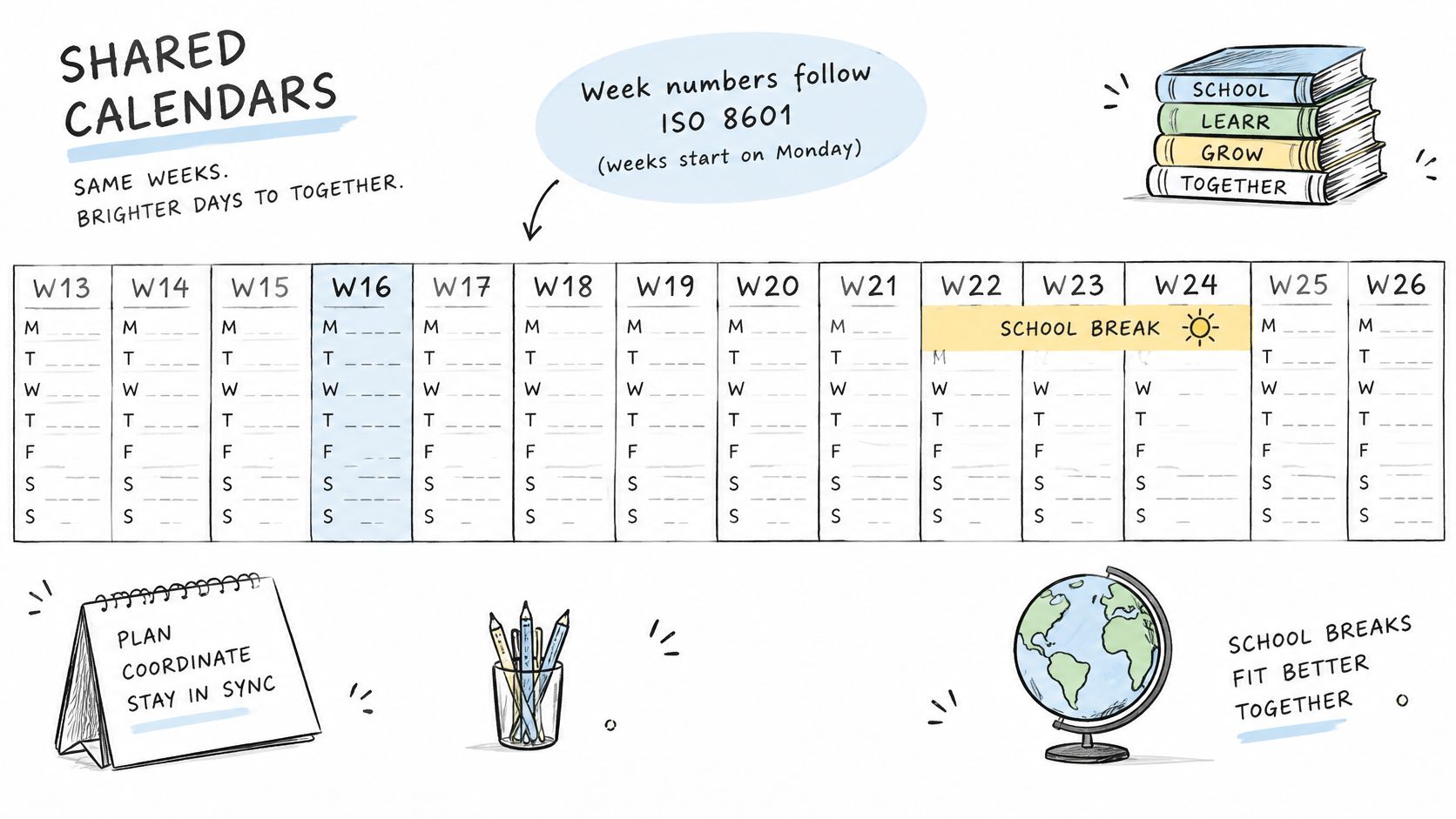
Give shared commitments an exact date
A week number identifies a span, not a specific appointment. If a task is due during a particular week, write its exact deadline in the date cell.
A blank calendar starting on Monday groups workdays in a way that aligns with ISO weeks. A Sunday-first calendar is also useful, but its rows do not necessarily match ISO week boundaries.
Add local school information yourself
U.S. spring-break dates vary by school and district. Copy each closure from the school's published calendar rather than relying on a generic spring-break label, which may not fit every child's schedule.
Leave room for details that change what others need to do:
- School closures: Record dates from each school or district's published calendar.
- Childcare: Name the person or provider covering the closure.
- Travel: Mark departure, return and any affected pickup arrangements.
- Work coverage: Record approved leave or adjusted hours, not tentative plans.
Use a color-independent legend so the calendar stays readable in grayscale. For example, use a circle for a closure, a triangle for a transport change and initials for the responsible adult. Place the key beside the grid, and use dark, clear lettering. If the printed sheet is difficult to read, pair it with a verbal check-in or an accessible digital calendar.
Before April begins, compare the school dates on the shared calendar with each school's published schedule, then resolve any uncovered childcare or transport needs.
Print Your Calendar Before the Quarter Starts
Use the layout that matches your planning load, apply the selected settings and keep only a print that has passed the test-page check. A calendar is ready when people can read it, trust its dates and understand who's responsible for each commitment.
If preparation is still on your March task list, use the March calendar page to reserve time for setup before the quarter begins.
Finish the setup this week
Choose and save your working version. Select the layout, week start, paper size and holiday visibility, then download the PDF. Keep the saved file somewhere you can find it when you need a replacement.
Approve the physical print. Compare the test sheet with the preview, paying particular attention to the bottom grid and small labels. Don't print the remaining pages until the test is complete and readable.
Add confirmed commitments. Transfer school, travel and work arrangements from the organizations responsible for them. Validate federal observances against the Office of Personnel Management schedule before using them to arrange leave or travel.
Holiday markings affect labels, not the underlying dates. Choose the version that gives you useful context without crowding out the information your household needs.
Place the finished calendar where people make scheduling decisions, such as beside the household noticeboard or at the desk where appointments are booked. Keep a pen nearby and agree who updates changes. A visible, maintained working sheet is more useful than a perfect print stored in a drawer.
Dayleaf offers free printable yearly and monthly calendars with selectable week starts, US Letter or A4 paper sizes, and optional U.S. federal holiday markings. Visit Dayleaf to prepare your April, May and June calendar, download the PDF and check a test print before adding your confirmed plans.